Quick Start Guide
The Quick Start Guide is all you need in order to get you new SuperBox up and running!
Follow the steps below.
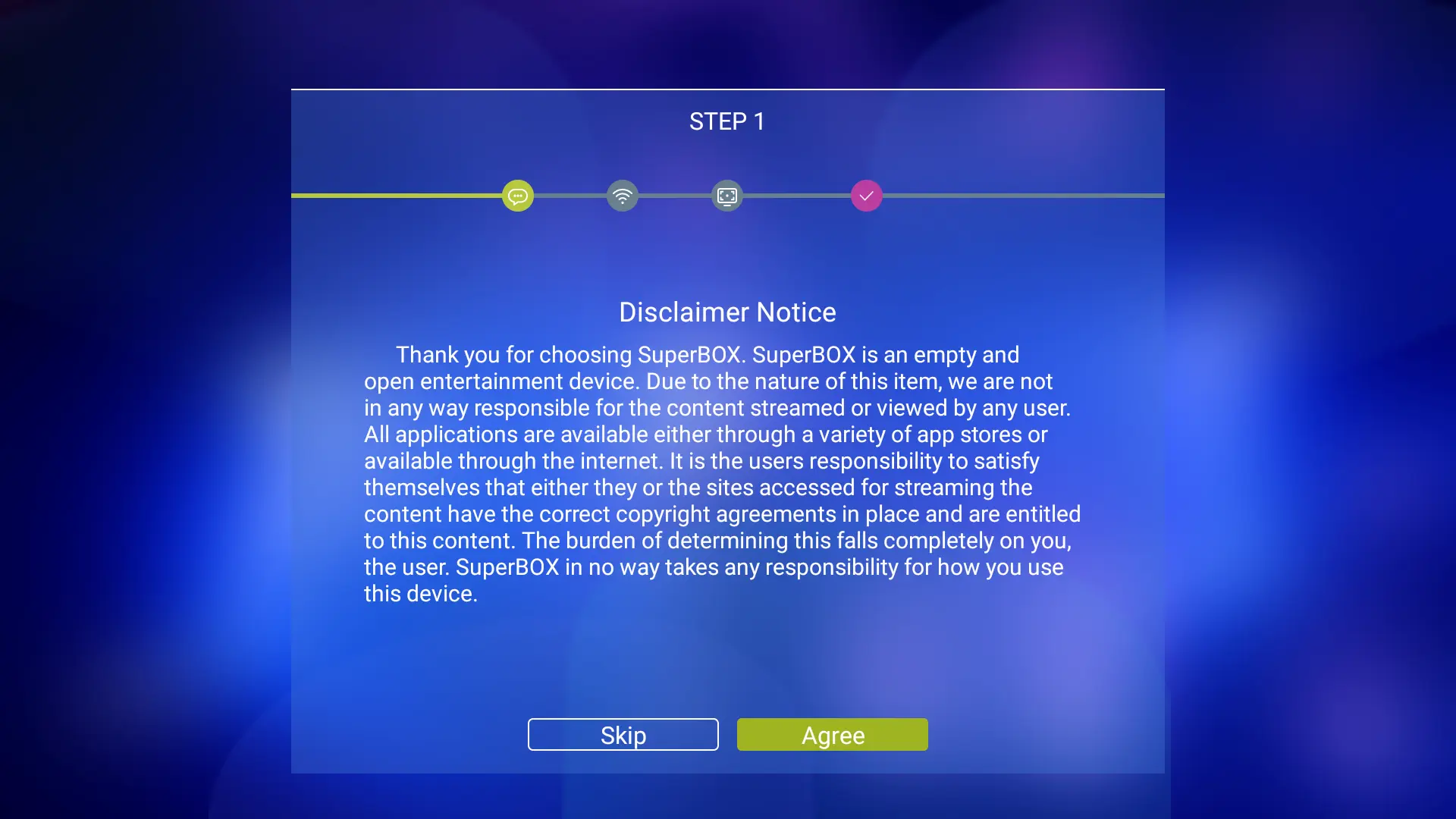
Accept the Disclaimer
Select Agree on the Disclaimer Notice screen.
Internet Connection (Wired & Wireless)
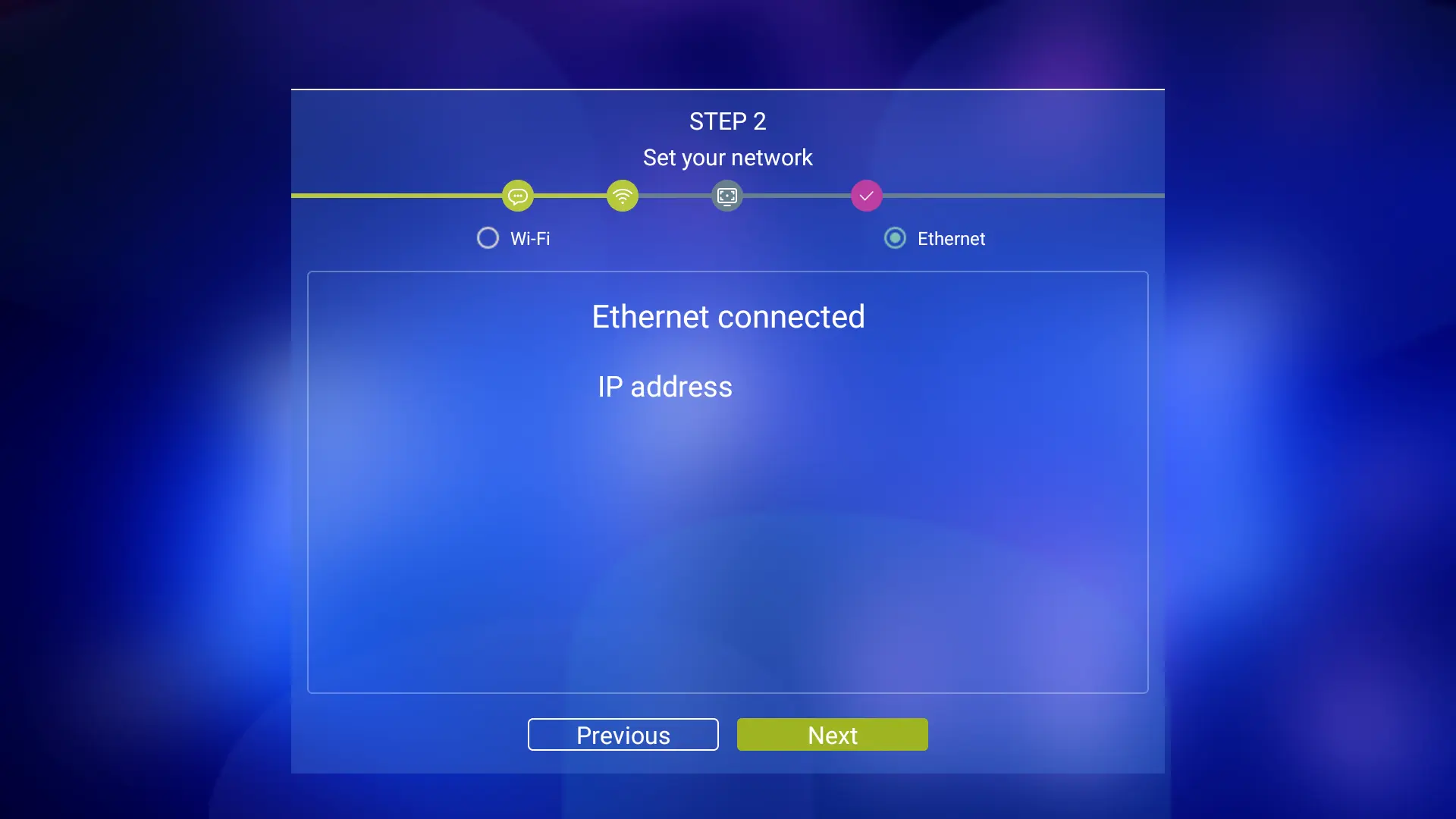
Wired will always be the preferred internet connection for streaming. Wireless can cause buffering issues if the signal is not strong enough.
Make sure the ethernet cord is connected and select Next.
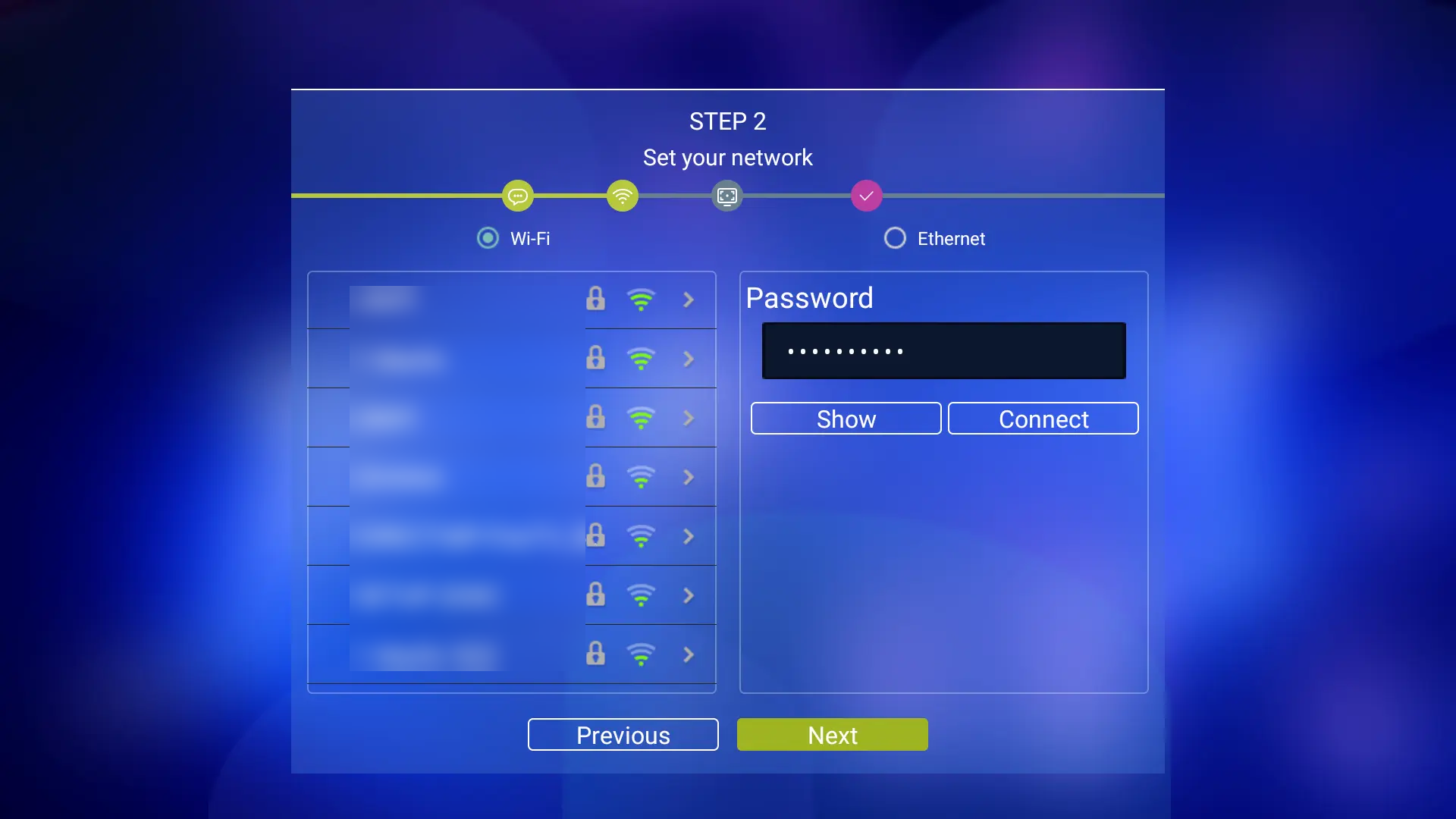
- Select your wireless network on the left-hand side of the screen.
- Enter your
Passwordon the right-hand side of the screen and selectConnect. - Click
Next.
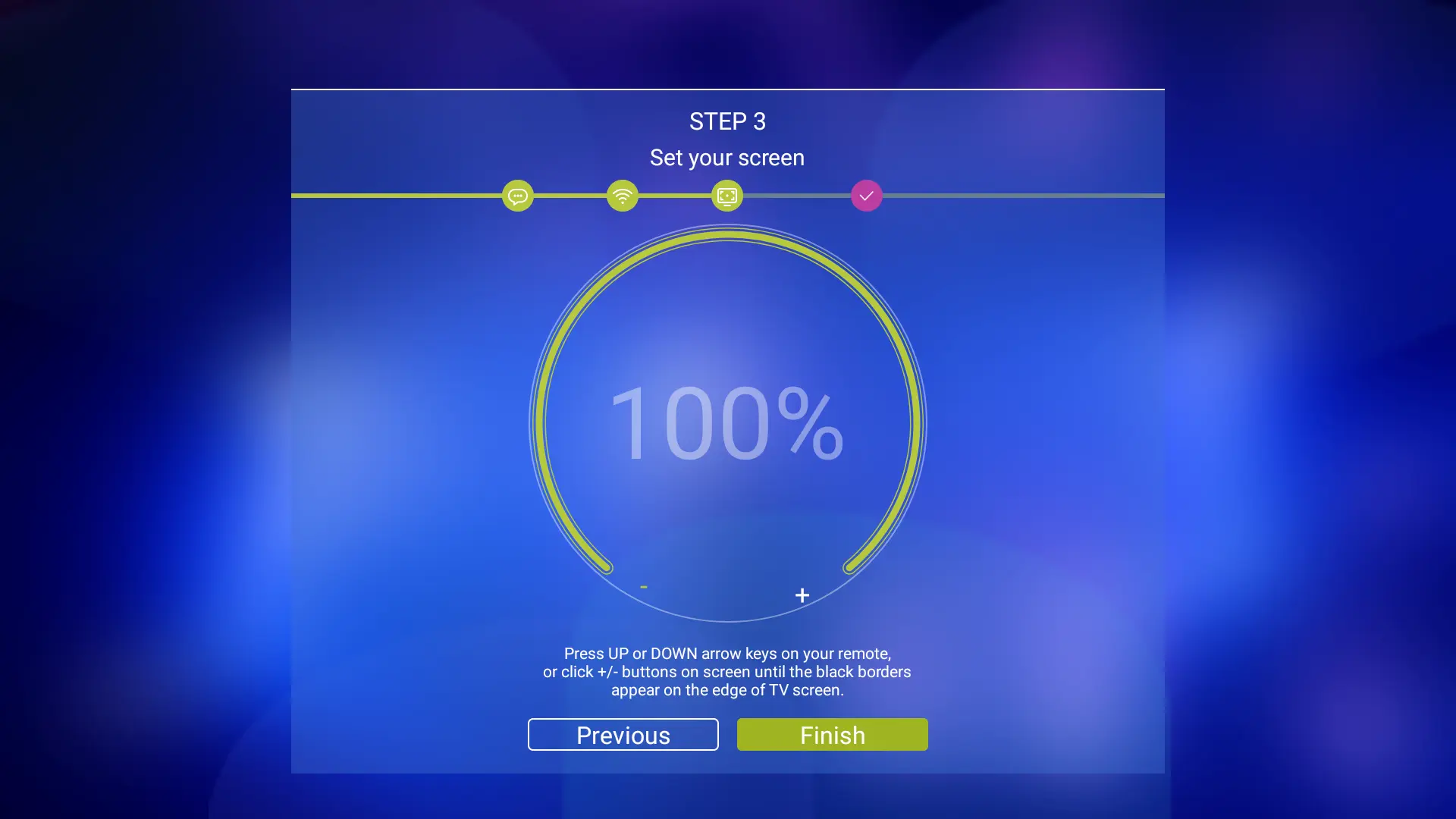
Adjust Screen to Fit Your TV
- Use the
UpandDownarrow keys on your remote control to adjust the picture to the edge of your television screen. - When done, select
Finish.
You should now be loaded into the SuperBox home screen.
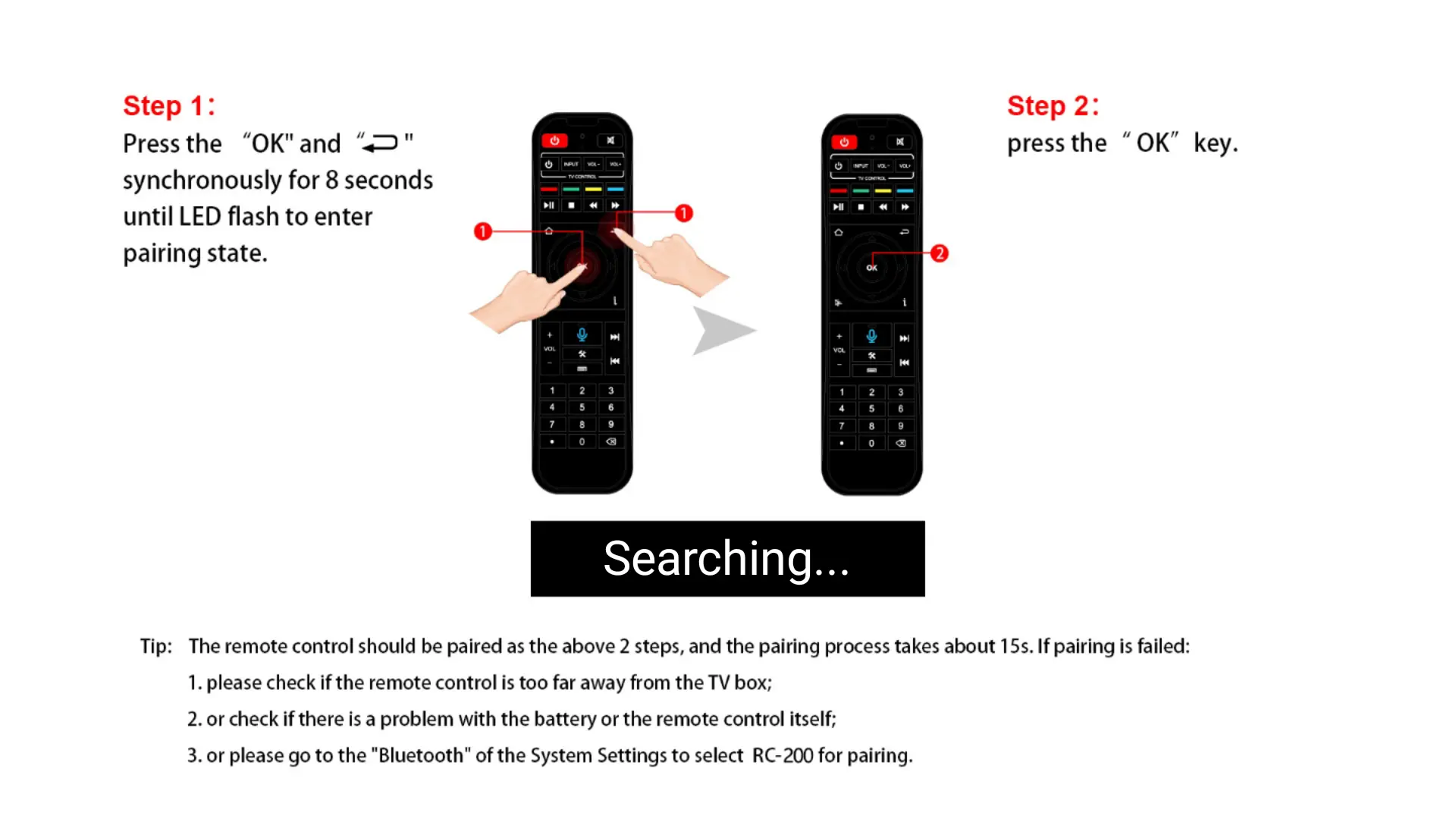
Change the Remote to Bluetooth Connection (Recommended)
The remote control uses infrared (IR) by default to connect to the SuperBox. This means that the remote will need to be pointed directly at the SuperBox in order to control it. You can switch this to use Bluetooth which allows the remote to be pointing in any direction as long as you are within approximately 30 feet to the box. Bluetooth also enables voice functionality of the remote.
- Press the button on your remote or select the microphone button on the bottom-left corner of the home screen.
- Press and hold
OKand buttons for 8 seconds or until the screen saysConnected.
The remote will still need to be pointed at the box to turn it on since bluetooth functionality only works after the box has been started.
Install the SuperBox App Store
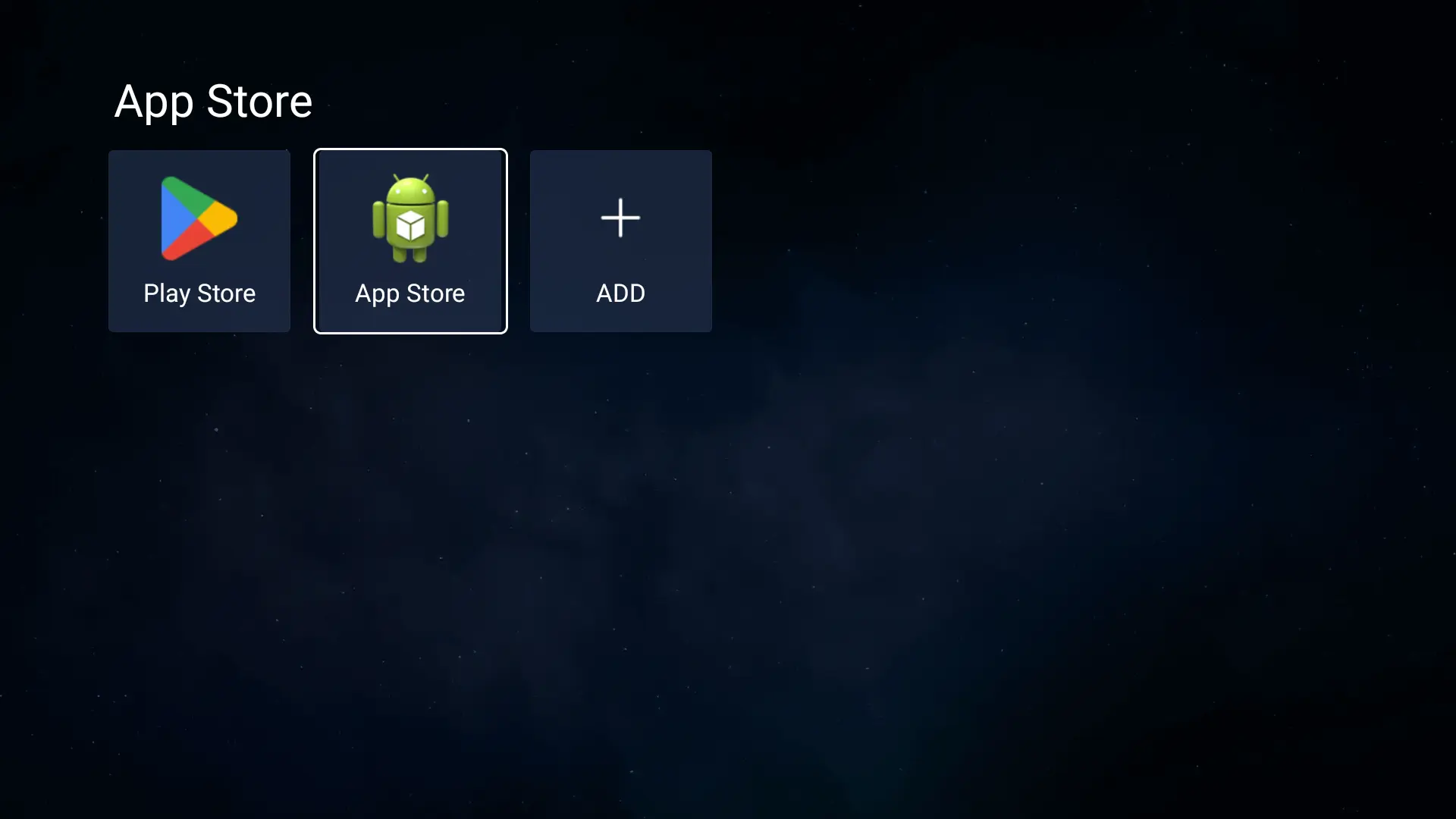
- Select the
App Storebutton on the home screen. - Click the
Green Android App Storeicon, then selectConfirmto start the installation.
It may take a few seconds for the App Store icon to show up. If it does not, reboot the SuperBox and try again. Please make sure the SuperBox is connected to the internet. If the App Store icon is still not showing, you can try updating the system firmware by clicking on Apps, and then selecting TV Rom Updater. This update may be needed after factory resetting the device. If the Appstore still does not show, you can manually install it here.
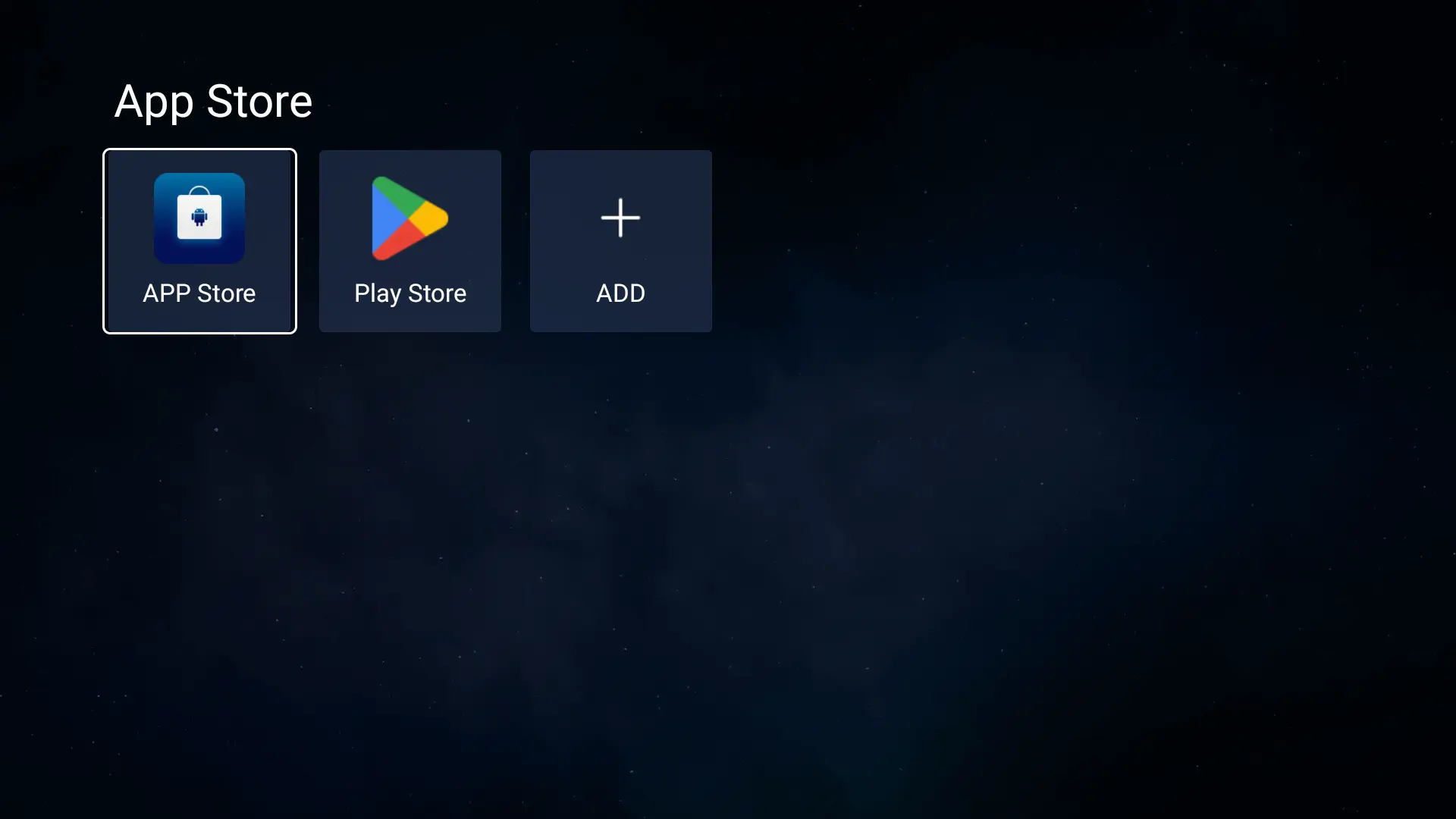
- After installation is complete, select the new
App Storeicon.
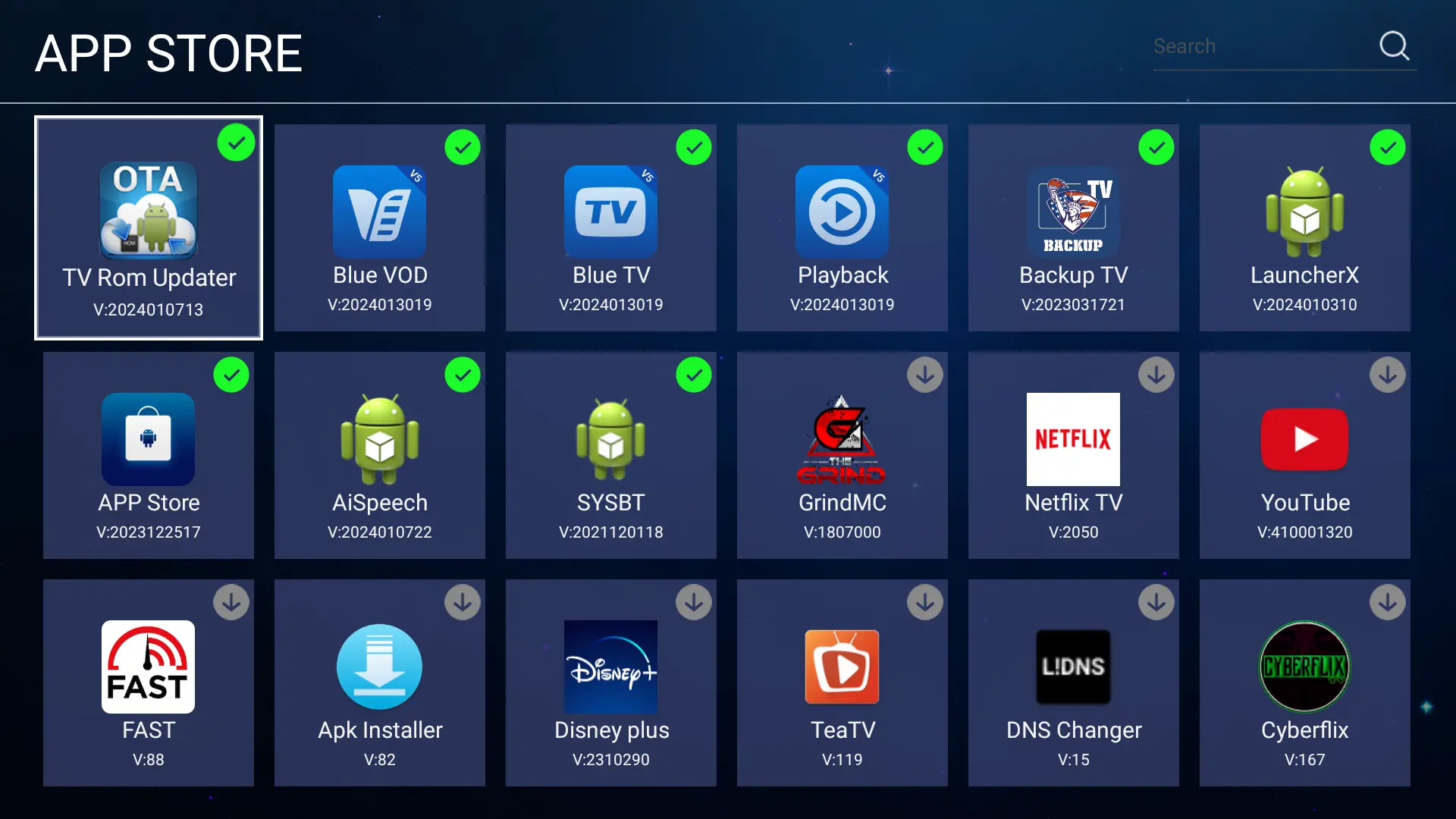
- Install the following applications by clicking on each one:
- Blue TV
- Blue VOD
- Playback
- Backup TV
- Blue Sport (Beta - may not work)
The S6 versions include additional 3rd party apps including: Blaze TV, Sky TV, Prime apps, Ignite TV, Fire TV, and Popcorn Time. Please note: These are 3rd party apps and not officially supported by Superbox.
Once installed, they will have a .
Navigate back to the home screen by clicking on your remote.
Assign New Apps to the Home Screen
Assign Live TV Apps
- Click on the orange
Live TVbutton. - Select
+ ADD. - Select
Blue TVandBackup TVand press on your remote.
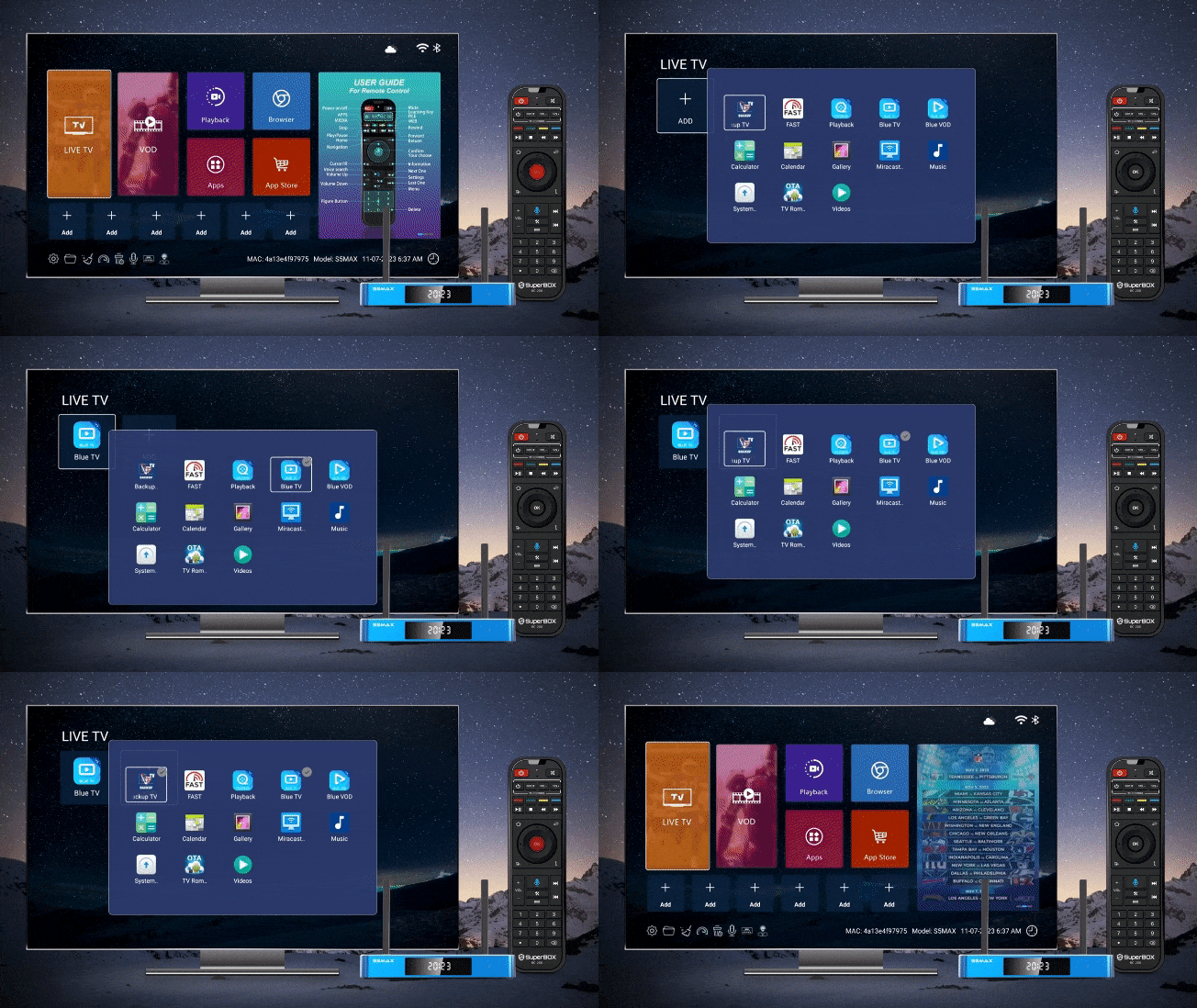
Assign Video on Demand (VOD) App
- Click on the magenta
VODbutton. - Select
+ ADD. - Select
Blue VODand press on your remote.
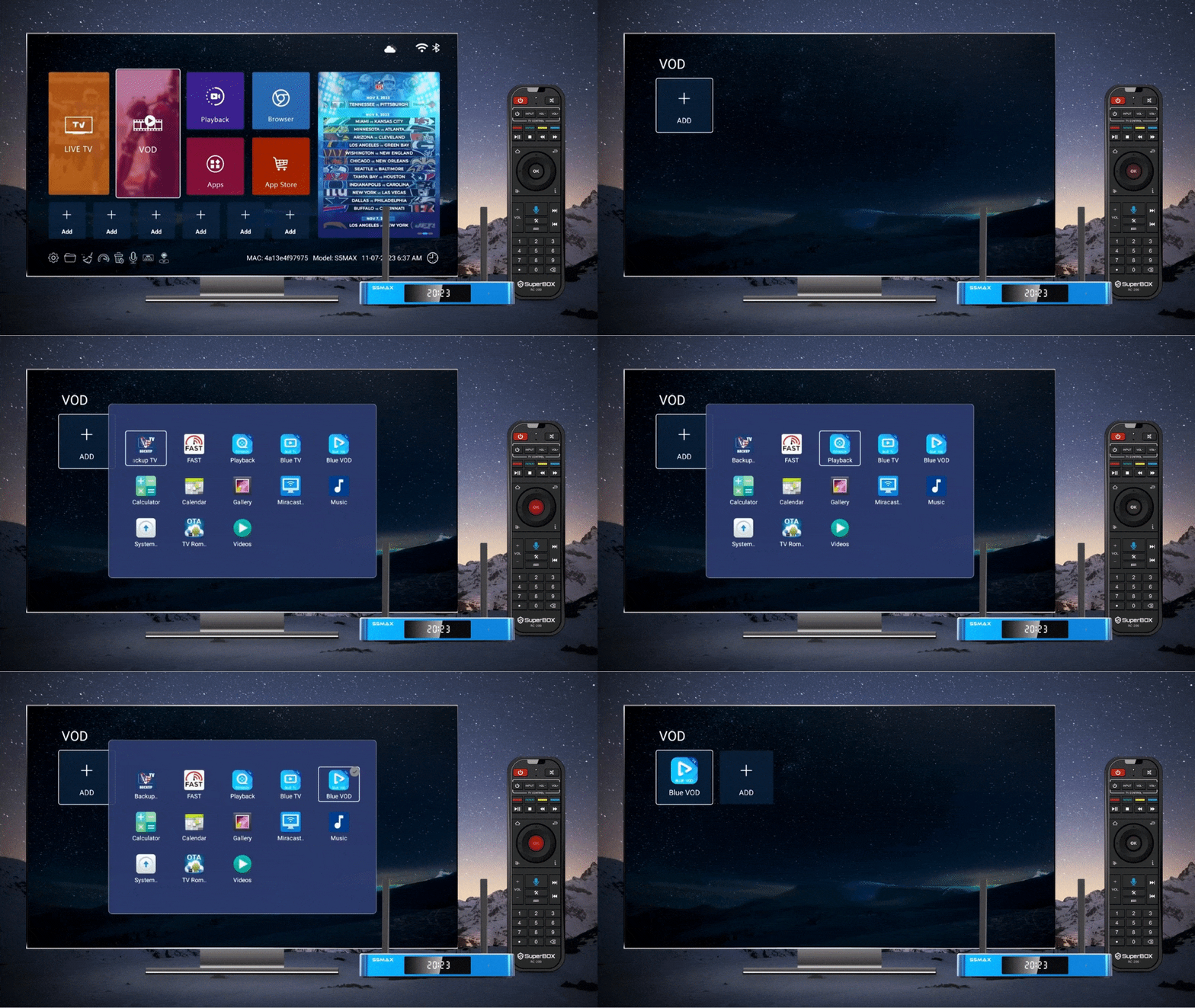
Assign Playback App
- Click on the purple
Playbackbutton. - Select
+ ADD. - Select
Playbackand press on your remote.
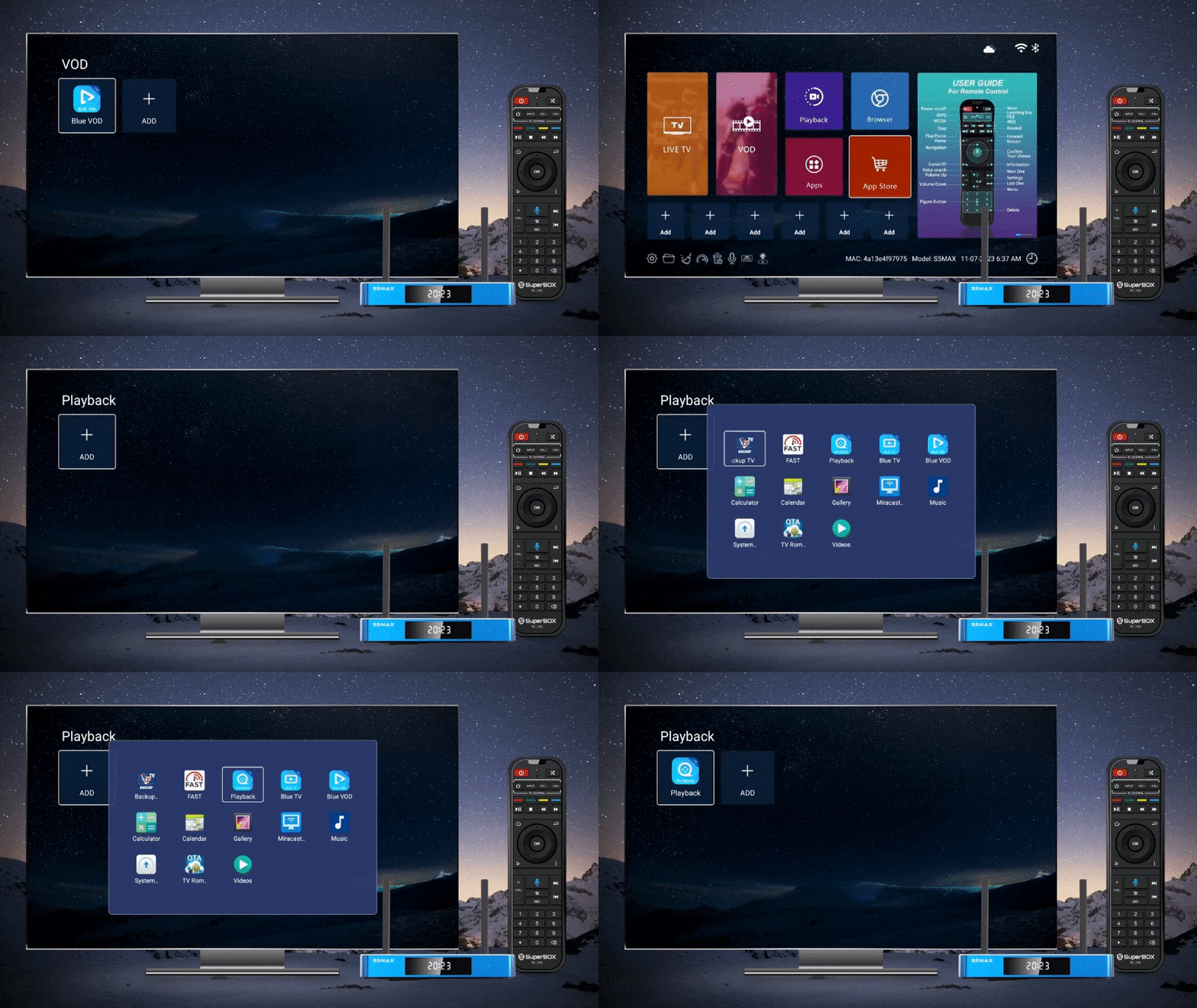
Congratulations! Your SuperBox setup is now complete!
For convenience, you can use the following shortcuts to quickly access your new apps.
- Live TV
- Video On-Demand
- YouTube
- Netflix
YouTube and Netflix will need to be installed from the App Store.